Showing posts with label Mobile phone. Show all posts

Tuesday, September 3, 2013

Shield phone from spies with this sleeve

My Paper, Monday, September 2, 2013, Page A16, Technology
From http://epaper.mypaper.sg/emnd/fvxen/fvxp/fvxpress.php?param=2013-09-02
Source Website: http://mypaper.sg/technology/shield-phone-spies-sleeve-20130902
By New York Times, NYT, Published on Sep 02, 2013

 
UNDER COVER: The OFF Pocket works as an electromagnetic barrier, preventing the penetration of signals that transmit data and audio.
PHOTO: UNDER COVER: The OFF Pocket works as an electromagnetic barrier, preventing the penetration of signals that transmit data and audio.
PHOTO: THE NEW YORK TIMES
https://blogger.googleusercontent.com/img/b/R29vZ2xl/AVvXsEj7wjKotg4Io6JpMSiPIGxGZEozrxol_CqoIpXSAInq8l4FRZe6iCXvzJRNB0McL_5j1QUHll9van3ww61qwagPwDixHCRSCDwoReyulAPw8gJYHGQO3nV8PdX5Eix5lOz_1Fiwu3naDwFl/s1600/MY_20130902_SNHIDE_P_8_3818658-1.jpg
http://mypaper.sg/sites/default/files/styles/large/public/field/image/20130902/MY_20130902_SNHIDE_P_8_3818658.jpg
http://mypaper.sg/technology/shield-phone-spies-sleeve-20130902


SAN FRANCISCO

STEALTH wear - clothing and accessories created to protect their wearers from surveillance - has largely been an abstract concept.

But designer Adam Harvey is working to bring some of his ideas to the mainstream.

He recently created a project on Kickstarter, a crowd-funding site, to see if he could drum up enough interest to finance a mobile-phone accessory, the OFF Pocket, which looks like a small sheath for a mobile device.

It works as an electromagnetic barrier - functioning as something known as a Faraday cage, an enclosure where radio waves cannot pass through - preventing the penetration of signals that transmit data and audio.

Mr Harvey and design partner Johanna Bloomfield originally set out with the modest goal of raising US$35,000 (S$44,600), enough to manufacture a small line of their phone protectors.

But the project hit its goal in seven days; it currently has close to US$60,000 pledged through the site. Nearly 600 OFF Pockets have been ordered.

Mr Harvey attributes the swell of interest in the project to the rising awareness of privacy and security concerns.

He had been working on the concept for the OFF Pocket since 2011. The first version was designed as a permanent pocket in a pair of his jeans.

The smartphone sleeves cost US$85 each, but Mr Harvey hopes to begin manufacturing enough of them to bring the cost down.

The designer said that he could not afford to hire an outside firm to extensively test the effectiveness of his products. But he tested them himself with most of the popular smartphones and major wireless carriers.

The design, which weaves together a number of different metal and nylon materials, "works like a metal cage, but is entirely flexible and made of fabric", he said.

"Everything bounces off. Inside, there's zero signal," he said.
By New York Times, NYT, Published on Sep 02, 2013


Reference
 

Tuesday, August 20, 2013

Handwrite notes with these apps

My Paper, Tuesday, July 16, 2013, Page A15, My Executive, Technology, Advance
From http://epaper.mypaper.sg/emnd/fvxen/fvxp/fvxpress.php?param=2013-07-16
Source Website: http://mypaper.sg/advance/handwrite-notes-these-apps-20130716
By NYT, Published on Jul 16, 2013, mypaper


 Important tool for cognitive development
PHOTO:  Important tool for cognitive development
 In writing by hand, even if it is just printing, our brain must:
  • Locate each stroke relative to other strokes.
  • Learn and remember appropriate size, slant of global form, and feature detail characteristic of each letter.
  • Develop categorization skills.
Research highlights the hand's unique relationship with the brain when it comes to composing thoughts and ideas.
Posted by Dr. Bill, "Memory Medic" on Wednesday, March 13, 2013, at 3:45 PM

The benefits to brain development are similar to what you get with learning to play a musical instrument. Not everybody can afford music lessons, but everybody has access to pencil and paper, and presently, taking handwritten notes, on a digital tablet.
https://blogger.googleusercontent.com/img/b/R29vZ2xl/AVvXsEjulaB6ZH5xEm1cGJR5aukdqYOsKzOKb_M3keLkPB8R4GmXRWHZO46vlaVpiqRzzi8wMogR40G8LkqYbxK_V5A-BfO2QD0QWRmnISbRp3_L2qzqVpEk8QV3UtNsGSHHvylc23Nu2ZaPzRo_/s1600/handwriting.JPG
https://blogger.googleusercontent.com/img/b/R29vZ2xl/AVvXsEjDzU9XKUbJTcIaTnJ8X3KHCyQyvTWHGOjOnfInMJgtsEW_-gFAAs7ejBoSWVTr4mAKM3WSlGM8OPxLLhf3ax7r1c2LA810dFidAabjIGhMh2qlHudH787DeqFMCrs9tmxhbvnvmP5e37U/s1600/handwriting.JPG
http://thankyoubrain.blogspot.sg/2013/03/cursive-writing-makes-kids-smarter.html


STUDENTS and professionals have moved beyond pen and paper when it comes to note-taking.

But taking handwritten notes, even on a digital tablet, is much more personal than typing on a word processor.

Many of today's most popular tablets are finger-friendly. But for a host of note-taking apps, the devices work best when paired with a stylus.

Here are a few faves (favourites):


Noteshelf – Handwriting on the iPad

 
NOTESHELF (US$6, or S$7.60)
The iPad app by Ramki has a main interface that looks like an empty page ready for you to write on, with controls in an icon bar at the top of the screen.

You can choose from many predefined types of digital paper, like plain and ruled pages (lined paper pages), and even one designed for musical notation.

Noteshelf supports digital styluses that connect to the app and relay information, like how hard you're pressing on the screen, to produce light or heavy lines. The highlighter pen and eraser options are slick, and there is a great system for selecting lines, drawings or text so you can adjust them later.

You can add photos to your pages, using intuitive multitouch gestures to move and resize images. But switching from a stylus to finger controls is a little jarring. Your notes can be shared as images or PDFs over e-mail, Twitter or Facebook.


Papyrus - Natural Note Taking
PHOTO: Papyrus - Natural Note Taking
Papyrus is a natural handwriting note-taking app that you use just like paper, but with the flexibility and advantages of modern technology.

Papyrus allows you to take handwritten notes on your Android device using either an active pen (e.g. Samsung S Pen), passive stylus, or your finger. The vector graphics engine keeps your notes beautiful at any zoom level and on any device, while the simple and intuitive user interface allows you to take notes quickly and efficiently.
By Steadfast Innovation, LLC - July 28, 2013 (Productivity)
https://blogger.googleusercontent.com/img/b/R29vZ2xl/AVvXsEgpCy-2ussNbOTJ1DRO1q7tLxrT4yYeNZf-fj5NqZO4mrZ_6_HBrmoD7sJipFSAttnSWRyH_PfG-0kCd5yAzHslZZfU-Tp6hPz7MrMfhZxAC9hjyrMtQ62eJINeLxlo61RxztuZj8ozzD68/s1600/unnamed.png
https://lh3.ggpht.com/zk7VXw9STeur0cUBrAvjhxOiR5urVuUl5v9Oc0yyzfxwAYyQaEJX1_d171egLlcdjQY=h900
https://play.google.com/store/apps/details?id=com.steadfastinnovation.android.projectpapyrus
 
PAPYRUS NATURAL NOTE TAKING (FREE)
Visually, the Android app is a lot like Noteshelf, with a page of simulated paper to write on and a slim menu bar at the top. It also has many of the same features.

The similarity to writing on paper is enhanced by a feature that makes thicker or thinner lines depending on how hard you push the stylus on the screen.

The app has different paper backgrounds, and you can add images. Adding typed text to your notes and drawing geometric shapes require an in-app purchase.


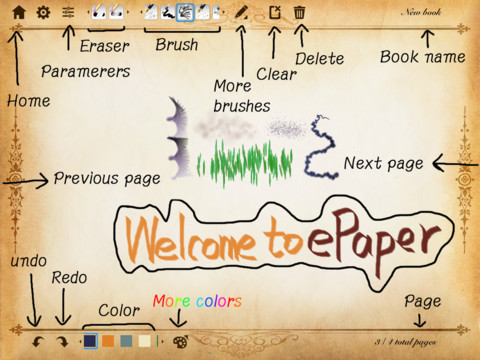
ePaper - Sketch, Write, Draw, Outline and color on a Digital Paper Notebook <br>ePaper, a sketching app, is the easiest paperless communications tool for EVERYTHING - Planning, storyboarding, problem solving and letting you share your ideas visually anywhere, anytime.
PHOTO: ePaper - Sketch, Write, Draw, Outline and color on a Digital Paper Notebook
ePaper, a sketching app, is the easiest paperless communications tool for EVERYTHING - Planning, storyboarding, problem solving and letting you share your ideas visually anywhere, anytime.
By effectmatrix
https://blogger.googleusercontent.com/img/b/R29vZ2xl/AVvXsEhyS8DuY0IePdRkHmJC1UGZ3eQGpKGi2jHJD5nnj-oiqbeY_8ULVeBAgfvmT7Nu6C-2IwcCugS__hsDDPSk4zMjxJYKyV0VmKnssAJ6Vg5b3BEandvbxpqdN9jeq-E3uU_BkmPV5nt5USy0/s1600/mzl.awasqolu.1024x1024-65.jpg
http://www.effectmatrix.com/mac-appstore/epaper1.jpg
http://www.effectmatrix.com/mac-appstore/ePaper.htm


ePAPER (US$2)
Made for iOS, the ePaper app by Effectmatrix has a more open design and departs from the idea of simulating a notepad. It has tools that let you sketch and paint on your note pages.

A broad array of pen, pencil and brush-emulating tools is included. A pack of additional paper designs costs US$1. It's easy to use, and if your notes tend to be artistic and free-form, this is for you.


Write by Stylus Labs
PHOTO: Write by Stylus Labs
Write is a note-taking app developed by Stylus Labs. Write provides users with a set of tools to draw, erase, insert space, and add bookmarks. Create handwritten links to websites, customize and save pens, and insert images into documents. Write is a perfect app for note-taking and brainstorming.
https://blogger.googleusercontent.com/img/b/R29vZ2xl/AVvXsEhG0_g_yd4bYtj7I9-OayVlkNsOL1u6f5Idacq6rM_IBxkHBZHnHHxdWkZ9HNOJF1ppHlDHrVVz-7wIflR1ketzTlBHsEHktDp9BtishIUEGIlLpEGhyphenhyphenjttL05Vq8mKvfYCL_B3osxn1NNU/s1600/best-note-taking-apps-for-android-write-by-stylus.jpg
http://media.heavy.com/media/2013/08/best-note-taking-apps-for-android-write-by-stylus.jpg
http://www.heavy.com/tech/2013/08/top-best-note-taking-apps-for-android-phones-and-tablets-2013/


WRITE (FREE)
On Android, this app by Stylus Labs is a simpler offering, with fewer pen types and digital paper designs. But it's still powerful, and you can export notes as images or PDFs via services like e-mail or Dropbox.

It can also support electronic styluses. The pages automatically scroll  (move up the displayed portion in window) up to expose more blank space when you approach the bottom edge.
By NYT, Published on Jul 16, 2013, mypaper


HELPDESK
我的字典: Wǒ de zì diǎn


Note-taking: 作笔记 zuò bǐ jì
Ruled pages (lined paper pages): 直纹页 zhí wén yè
Geometric shapes: 几何行状 jǐ hé xíng zhuàng
Scroll (move up the displayed portion in window): 滚动 gǔn dòng


Reference
 

Thursday, July 11, 2013

Apps to save your phone from thieves

My Paper, Thurday, July 11, 2013, Page A18, Technology
From http://epaper.mypaper.sg/emnd/fvxen/fvxp/fvxpress.php?param=2013-07-11
Source Website: http://mypaper.sg/technology/apps-save-your-phone-thieves-20130711
By DONOVAN QUEK, The Star/Asia News Network, Published on Jul 11, 2013, myp@sph.com.sg


The Google Play Store has a few apps that can help you recover an Android device or at least mitigate the loss.
PHOTO: The Google Play Store has a few apps that can help you recover an Android device or at least mitigate the loss.
https://blogger.googleusercontent.com/img/b/R29vZ2xl/AVvXsEjNHwtwLNmAVGLF7JBbqDxzabp0qW7zIZPnZ4Dd_LI2fMoSTImf3_9BrIBHG_fLf46qps2PU7vtrOL2S6VM4ejnweOg2iUTB9WW8ub0QI435cC-eMKccIINt_Va3bbt4PtSVykyVF8X7fiB/s1600/android-security-apps-650x0.jpg
http://icdn5.digitaltrends.com/image/android-security-apps-650x0.jpg
http://www.digitaltrends.com/mobile/top-android-security-apps/


LOSING a gadget is never a pleasant experience, but there are a few things one can do to ease the pain in the event of such a situation.

The Google Play Store has a few apps that can help you recover an Android device or at least mitigate the loss.

The app that seems most promising is the Cerberus Anti Theft (bit.ly/HRB96i) app by Lsdroid.

It comes with a free one-week trial, after which it will cost £2.99 (S$5.70) for a lifetime licence. The licence - tied to a user's Cerberus account - can be used on up to five devices concurrently.

Cerberus gives users the option of connecting remotely to a device that has the app installed, via the Cerberus website. Viewing location and SMS history, recording audio, wiping out all data, and capturing images using either the back- or front-facing camera can all be done remotely.

With the app, you can also set the front-facing camera to capture an image when the wrong lock-screen password is entered a preset number of times.

What makes Cerberus different from other location-tracking apps I've tried is the SIM-checker feature, which makes the phone secretly SMS you and other selected numbers when an unauthorised SIM card is inserted into it. This is very useful, and even helped an acquaintance of mine in recovering his phone after he misplaced it.


Phone Tracking the theft recovery lost & found App is designed to work in the background and can be activated to turn on remotely in the event you misplace your phone.
PHOTO:  Phone Tracking the theft recovery lost & found App is designed to work in the background and can be activated to turn on remotely in the event you misplace your phone.
https://blogger.googleusercontent.com/img/b/R29vZ2xl/AVvXsEgVVnPvDg9ioVSOn8_5gOESTfAoDqpkkIoh7cmwg5MV54HvXlGs8S-G6UsghkCp9ONUwNUGP8gINbUfDyfXS3CJUpI1zMBwv2tZn_QNyKtXYCfC2XXXaCwpZb2RNQTL3mk0FljBBBcW2Q-c/s1600/com.gtx.phonetracking_0.png.jpg
http://cdn3.droidmill.com/media/market-media/com.gtx.phonetracking_0.png
http://droidmill.com/phone-tracking-84197.html


The app works even without an Internet connection. The beauty of it is that, even if a perpetrator has switched the SIM card, you will be informed of the number assigned to the new SIM card, thanks to the SIM-checker feature.

If your Android device is rooted, Cerberus will be almost impossible to uninstall. The app can survive factory resets, too.

An alternative to Cerberus is the popular Lookout Security & Antivirus (bit.ly/HjQS1m) app by Lookout Mobile Security. More commonly known for its anti-virus software, the app comes with a "Find my phone" feature as well.

Users who have installed the app and registered for its services can log on with any Web browser to initiate a list of commands, similar to Cerberus.

These include location tracking via Cerberus, activating a loud alarm even if the phone is set to silent mode and checking a device's last-known location before it was switched off.

The app also has the capability to capture pictures and send them to your e-mail address when someone enters the wrong lock-screen password.

If you are using the premium version, you can also lock your phone remotely or wipe your phone's data from the Lookout website.

By DONOVAN QUEK, The Star/Asia News Network, Published on Jul 11, 2013, myp@sph.com.sg


The writer is a full-time auditor and big-time gadget lover.


LOSING a gadget is never a pleasant experience, but there are a few things one can do to ease the pain in the event of such a situation.
PHOTO: LOSING a gadget is never a pleasant experience, but there are a few things one can do to ease the pain in the event of such a situation.
https://blogger.googleusercontent.com/img/b/R29vZ2xl/AVvXsEgZ76Y3aHxT63dclX3X2XegcQB30jATkdS5btC6d8PGCQOWdZxNi-iAVxZTHUiMZW32SjqIJwQwH226bqJLOaMwffZJokYdXFMOdGykOG18OGog6xq4_fMHmHWimjyqhOBUOYYfP9vr4kdx/s1600/cellphonesecurity1.jpg
http://arpandeb.com/wp-content/uploads/2011/10/cellphonesecurity1.jpg
http://arpandeb.com/10/2011/tech/iphone4s-5-vs-samsung-galaxy-sii-vs-motorola-droid-bionic-see-who-wins.html


HELPDESK
我的字典: Wǒ de zì diǎn


Promising: 有用 you yong
Preset: 预先设置 yu xian she zhi
Registered: 注册 zhu ce
App: 应用程序 ying yong cheng xu


Reference

Tuesday, July 9, 2013

Not an easy Bridge to use for transfers

My Paper, Tuesday, July 9, 2013, Page A19, Technology, Gadget Review
From http://epaper.mypaper.sg/emnd/fvxen/fvxp/fvxpress.php?param=2013-07-09
Source Website: http://www.mypaper.com.sg/technology/not-easy-bridge-use-transfers-20130709
By
ROY FURCHGOTT, The New York Times, Published on Jul 09, 2013, myp@sph.com.sg


PLUG IN TO TRANSFER: The Leef Bridge has two plugs, a standard USB to connect to a PC and a micro USB for a phone.
PHOTO: PLUG IN TO TRANSFER: The Leef Bridge has two plugs, a standard USB to connect to a PC and a micro USB for a phone.
PHOTO: THE NEW YORK TIMES
https://blogger.googleusercontent.com/img/b/R29vZ2xl/AVvXsEha3Hk6Pk6OfaNKwXHhOHoMFMcx09kCZCQjGqKkrUHYrmmR8Uvy6WPjxp_D6foNjOd-uAkYcMDjCBPWLXYcDt_LCrnVuLIU-ZKkc8TAHdwK7qOeUv2PfU31Omtc0QtxYIZZ0rFQ9RB7uCAK/s1600/MY_20130709_SNUSB_P_3736608-1.jpg
http://www.mypaper.com.sg/sites/default/files/styles/large/public/field/image/20130709/MY_20130709_SNUSB_P_3736608.jpg
http://www.mypaper.com.sg/technology/not-easy-bridge-use-transfers-20130709


TRANSFERRING files from your computer to your phone can be a big hassle, especially when the devices do not use the same operating system.

The Leef Bridge, a USB thumb drive from Leef Technology, takes a stab at the problem, and it is a step in the right direction, even if it is not quite there yet.

The Bridge has two plugs, a standard USB on one side and a micro USB on the other. The idea is that you plug the standard side into a computer and load up the files you want. Then, plug the micro USB side into your phone.

It seems simple enough, but the fault in the Bridge lies with Android, not Leef.

Various phones handled the external drive differently and none of those I tried had easy transfer processes, although the transfer was smoothest with a Samsung Galaxy S4.

First, before you can use the Bridge, your phone has to run on Android's Jelly Bean 4.1 operating system or a newer version, and the device has to accommodate the USB OTG (On-The-Go) standard.

On top of that, you may need file-management software - Leef suggests Astro File Manager.

With help from Leef, I was able to use the file manager on an HTC One. The trick is not to open the file manager until after you plug in the Bridge.

The Galaxy S4 recognised the drive without additional software, which made the transfer easier. Using a Motorola Razr, I was unable to figure out how to make a transfer, even with the file-management software.

So, is this easier than using software like DoubleTwist, which connects your computer and phone? I'd say they are about the same. Both are manageable once you are over the considerable learning curve.

You may be wondering if you can do the same thing with any thumb drive and an adapter cable. You can. But it still doesn't solve the complexity of the file-management system.

The Leef Bridge might become more sensible to use when more phones recognise drives the way the Galaxy S4 does, or if someone were to make a smart, simple file manager - maybe one to go specifically with the Bridge (are you listening, Leef?).

In the meantime, the company said a 16GB Bridge will be available for US$18 (S$23) and a 32GB Bridge will be available for US$29.

By ROY FURCHGOTT, The New York Times, Published on Jul 09, 2013, myp@sph.com.sg


Reference

Saturday, June 8, 2013

How To Tether Your Cell Phone Using PdaNet

PHOTO: PdaNet Tethering App
PdaNet Android app for tethering, Logo PdaNet / Screengrab Melanie Pinola
https://blogger.googleusercontent.com/img/b/R29vZ2xl/AVvXsEjCyFzTiUvhvYGQP-9d489nPjE-FsPTHvFdW0TWHtQCdsaYw4QHNSf35oisqY8VYE7DCbqiUwH7ibQBfdynXHGFO0W2AJp6Zhi7ISGYphSUZZQFov-qGfoI1CdXQEY0fu70RuD5GnfMz2QX/s1600/android-pdanet.png
http://0.tqn.com/d/mobileoffice/1/0/G/E/android-pdanet.png
http://mobileoffice.about.com/od/wifimobileconnectivity/ss/how-to-tether-android-phones-with-pdanet-instructions.htm


Tethering with PdaNet: An Overview
PdaNet is a free app (available for iPhone, Android, BlackBerry, and other mobile platforms) that you can use to turn your smartphone into a modem for your laptop. Tethering capabilities mean you'll never have to worry about finding a wi-fi hotspot or be in range of a wireless access point -- as long as you have cellular data coverage (3G/4G), you'll be able to work online on your laptop wherever you are.

The screenshots here use the Android version as an example (Android 2.1 and Windows 7). PdaNet's Android version enables tethering via USB cable as well as over Bluetooth DUN (Dial-Up Networking). Although you can use PdaNet for free, the full version ($23.95) allows you to access secure web sites after the trial period ends.

Next: Download and install PdaNet to your computer


Download and Install PdaNet on Your Mac or PC
PHOTO: Download and Install PdaNet on Your Mac or PC
Install PdaNet on Your Computer, by Melanie Pinola
https://blogger.googleusercontent.com/img/b/R29vZ2xl/AVvXsEjAv2-cZ5gWIFFHMF7peKFQ3kjUWgLJOlJ8oUhJMxMiC2eZRfHQbFBansYzRXYL4nkmxs_4seNLLr9XM4EYmy8MTih9NoNB4zY-UP9iViwZzhzSNBFRdHCExcFUGv210PDbp2hZUAWwVf7A/s1600/pdanet-install-usb-driver.gif
http://0.tqn.com/d/mobileoffice/1/0/E/E/pdanet-install-usb-driver.GIF
http://mobileoffice.about.com/od/wifimobileconnectivity/ss/how-to-tether-android-phones-with-pdanet-instructions_2.htm


Tether Your Android Phone to a Windows or Mac Computer

To use the PdaNet app for tethering your Android phone, you need to install the app on both your Android phone (download it from Android Market) and also install the software on the Windows computer (Windows XP, Vista, Windows 7 -- 32-bit and 64-bit versions available) or Mac OS X (10.5+) computer you want to go online from using your cell phone as the modem. 

Step 1: Download the PdaNet Android Windows or Mac installers from makers June Fabrics.
(Alternately, you can download the installation file to your Android phone's SD card, connect your phone via USB and mount the SD card, and run the installation package from there.)

Step 2: Install PdaNet on Your Computer:
Set up on the computer side is pretty straightforward though there are several steps involved. During the installation you'll be prompted to select your cell phone manufacturer and also connect your device via USB (enable USB debugging on your Android phone in Settings > Applications > Development). 

You may be warned by Windows Security that the publisher of the driver software can't be verified, but just ignore that prompt and choose to "Install this driver software anyway."

Next: Install the PdaNet app on your Android device


 Download and Install PdaNet on Your Cell Phone 
PHOTO: Download and Install PdaNet on Your Cell Phone
Download PdaNet from the Android Market, Screengrab by Melanie Pinola
https://blogger.googleusercontent.com/img/b/R29vZ2xl/AVvXsEgZ6d0tPsi9gCHjY9FveNZ7kUgTtzjbhLBmrg0IcHc0divRWT-_T4x6zIokQDxPijr9QnEgebloDFIgzTa48gfbY9XpGKg9g6mJVe-YBGEvoGX2T0eB-IyPzEhdQFewmjtpU2uJnGRRFwTL/s1600/android-pdanet-market.png
http://0.tqn.com/d/mobileoffice/1/0/H/E/android-pdanet-market.png
http://mobileoffice.about.com/od/wifimobileconnectivity/ss/how-to-tether-android-phones-with-pdanet-instructions_3.htm


Step 3: Download PdaNet to Your Android Smartphone
After installing the PdaNet software for your Windows or Mac laptop/computer, you'll need the app on your Android smartphone. Search for "PdaNet" (not case-sensitive, actually) in the Android Market, and install the app (made by June Fabrics Technology Inc.).

Next: Connect Your Android phone via USB or Bluetooth


Tether Your Android Phone to Your Computer
PHOTO: Tether Your Android Phone to Your Computer
Connect your Android device to your computer to use PdaNet for tethering, by Melanie Pinola
https://blogger.googleusercontent.com/img/b/R29vZ2xl/AVvXsEhHlxmEoMLjkFcMzSWq6orbuUFwzxWruVHuG1tBJNOl6zJKBlnIbRVq6xuhu73-2dEB5-9-vsHfL_0eFejs2uhkpb5PHYyF6MloK6jSPfe1KoWEJUiYiJ__vwl-ypwVM2yQ1qftQk_dPUAP/s1600/tether-pdanet-pop-up.jpg
http://0.tqn.com/d/mobileoffice/1/0/F/E/tether-pdanet-pop-up.jpg
http://mobileoffice.about.com/od/wifimobileconnectivity/ss/how-to-tether-android-phones-with-pdanet-instructions_4.htm


Step 4: Connect Your Android Phone to Your Computer to Share the Internet Connection
Once the software has been installed on both your Android phone and your laptop, you can share your phone's Internet connection with your computer. 

To connect over USB:
  • Go to the PdaNet app on your smartphone and select "Enable USB Tether," then use the USB cable to connect the device to your laptop.
  • You'll get a pop-up window on the laptop that you can click to connect the phone to PdaNet.
  • You may also or alternately have to click on the PdaNet icon in your taskbar, and select "Connect Internet."
To connect via Bluetooth, the steps are pretty much the same, except you will select "Enable Bluetooth DUN" in the Android app and pair your Android phone with your laptop via Bluetooth rather than via the USB cable.

You should then see the joyful "Connected!" notification on your laptop and be able to surf the Web (albeit [although] not that fast) using your Android's data connection.

By Melanie Pinola, About.com Guide

 
A MAC (Media Access Control) address is a number that identifies the network adaptor(s) installed on your computer. MAC Address is the Physical Address of network adaptor, eg. 00-13-72-A7-34-1F.
Source Website: http://www.wikihow.com/Find-the-MAC-Address-of-Your-Computer


Reference

Saturday, June 1, 2013

HW Virtual Serial Port & HyperTerminal to Measure iDEN GPS

Source Website:
http://jitendrahelp.blogspot.sg/2010/05/hw-vsp3-virtual-serial-port-hw-vsp-is.html
http://forum.gsmhosting.com/vbb/f770/how-connect-motorola-driod-cdma-work-shop-1610292/ - (How to connect motorola driod with cdma work shop)


Connect the Motorola mobile phone to PC via USB
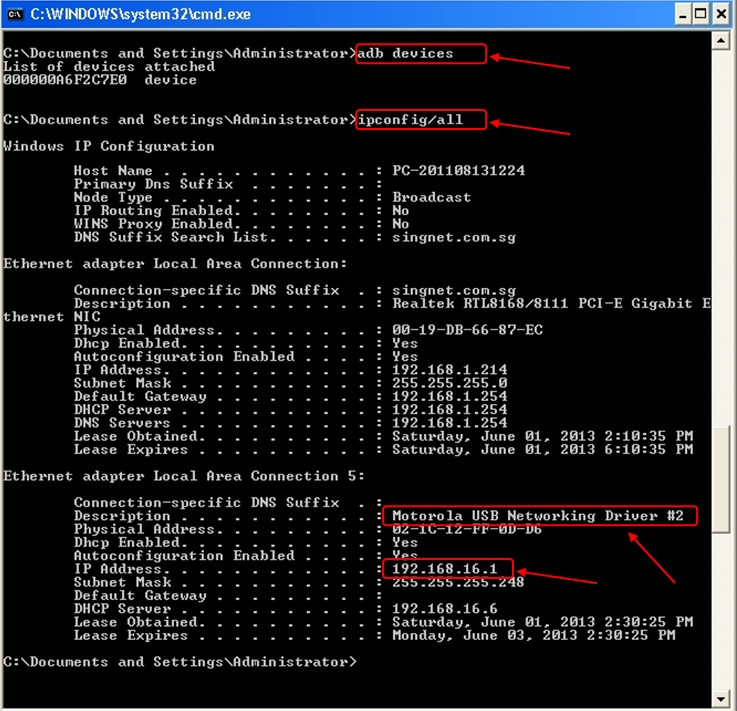
The mobile phone should be in "BERBUG" mode. Windows should install a networking driver for the phone. If a command prompt is opened and “adb devices” is typed, the android devices attached are listed, eg. “000000A6F2C7E0”.

If "ipconfig /all" is typed, the network adapter named "Motorola USB Networking Driver" is displayed. The IP address will generally be 192.168.16.1.


Network adapter named 'Motorola USB Networking Driver' with IP address 192.168.16.1
PHOTO: Network adapter named "Motorola USB Networking Driver" with IP address 192.168.16.1


To find out which COM Port to create, at the PC:
Press WIN button + R > Run command: sysdm.cpl > System properties > Hardware Tab > Device Manager > Ports (Com and LPT) > Motorola USB Diagnostic Port (COM9)

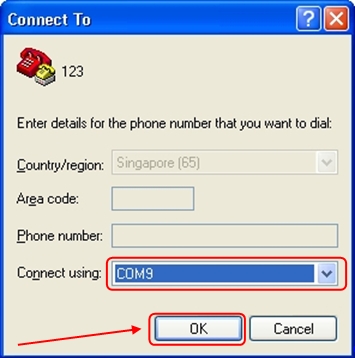
COM9 is the port to create for the communication. This port number is different for different connections.


The Motorola Mobile Phone connected to the USB is detected by the device manager as COM9.
PHOTO: The Motorola Mobile Phone connected to the USB is detected by the device manager as COM9.
https://blogger.googleusercontent.com/img/b/R29vZ2xl/AVvXsEiArcukWY1YFJcvMfmPDQLYxEC7fL5YF0Sl-4IYqPV3d_GS2EjLRjkhwqDV3urUnkbPlRUkqaFsm3ZpTlku3Hvam-40GqAr7HylYrkVaEV_qBCRUBBlamhSTemlPyLUNxKcFUrkjSTTHRS8/s1600/Device+Manager+Shows+Motorola+USB+Diagnostic+Port+%28COM9%29.jpg


With the networking driver installed, launch the HW Virtual Serial Port 2.5.10 application and fill in the following:
IP address: 192.168.16.2 (IP Address of Motorola Phone Portal)
Port: 11004
Port Name: COM9 (Obtained from the [Ports (Com and LPT) of Device Manager]
Server Port: 23
Activate the “Create COM” button to start creating the virtual serial port.


HW Virtual Serial Port 2.5.10 and the required information entered before creating the Virtual COM.
PHOTO: HW Virtual Serial Port 2.5.10 and the required information entered before creating the Virtual COM.
https://blogger.googleusercontent.com/img/b/R29vZ2xl/AVvXsEiHLbTJdygrKhUku_3_Eh_cEU8BLeO7zpYd4f2hOnPv4fR1G6uI4qFr6QS51NB2WK4DkjjWyhvloWUMkPTSpTrxBLym9a5uFs86x04LPak1MbxljeDjQ4D7lyXF7g4VruY1ejN_x8UCXHud/s1600/HW+Virtual+Serial+Port+2.5.10+-+Pre+Opening+HyperTerminal+-+1.jpg


HW Virtual Serial Port 2.5.10, checks the ADB (Android Debug Bridge) device, which in this case is the Motorola Mobile Phone, by sending a test ping to IP address 192.168.16.2. Upon successfully finding the Mobile Phone, it creates the Virtual serial port COM9 and connects it to the PC.


HW Virtual Serial Port 2.5.10, Checks, Creates, and Connects COM9 to the PC.
PHOTO: HW Virtual Serial Port 2.5.10, Checks, Creates, and Connects COM9 to the PC.
https://blogger.googleusercontent.com/img/b/R29vZ2xl/AVvXsEiQzd1fucrvVLOEthGxTaEO_w_3p7nAGTEd9gKyoLHYcUt48b2TdM-nmBNS4UklcstrJoqRQ3m9RH1fpcESF7wZEd7E9NaYPCzySxdPEZdNtVQdQbM21wb8R0xGhRigFJIh-JZ0R7t6aLfp/s1600/HW+Virtual+Serial+Port+2.5.10+-+creates+the+Virtual+COM.jpg


Launch the Microsoft application ”HyperTerminal”  located in the Accessories Menu.
Start Menu > All Program > Accessories > Communications > HyperTerminal.


,HyperTerminal, is located in the Accessories Menu
PHOTO:HyperTerminal” is located in the Accessories Menu
https://blogger.googleusercontent.com/img/b/R29vZ2xl/AVvXsEiylKd9rz5_h2Y7czfhnIUMmPoPKOZPSNg53_PogOocEi1TZZvSIQ5xBqW6CQEINjE9zk4kRUbizwwh2ssc9fLSf31ahofzIIFlzXl5e8yOTMHP-8gazjw_onrjLUFjanHxSzfgzLae-cOB/s1600/Where+to+find+HyperTerminal+in+Windows+XP-1.jpg


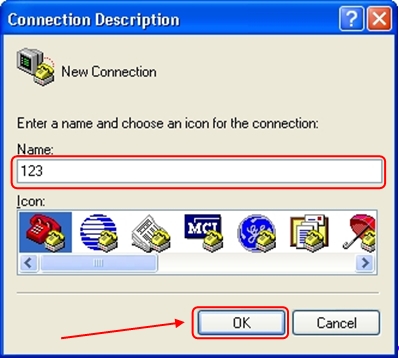
When HyperTerminal is launched, a name for the new connection is needed. Just enter any name, for example, “123”. Activate the “OK” button.


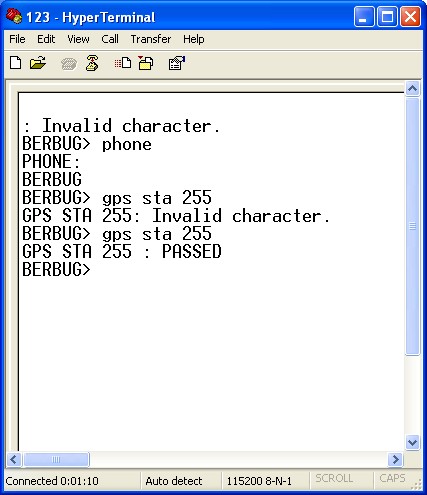
 The HyperTerminal Command Pad appears. Press the “Enter” key at the keyboard a few times before the "BERBUG>" command prompt appears. Type in the command “phone” and the response from the mobile phone is “PHONE: BERBUG”.

To test the GPS of the iDEN phone (in BERBUG mode), type in the command:
gps sta 255

The 1st response could be “Invalid character”. Subsequently the same command will produce a “PASSED”.


Communication with the mobile phone at the PC using HyperTerminal.
PHOTO: Communication with the mobile phone at the PC using HyperTerminal.
https://blogger.googleusercontent.com/img/b/R29vZ2xl/AVvXsEjpC2BNua-PkTY4jYNC3UptYoFO8TQTbSoPJN12GG9Qkot4s9bp1l2-tFHeUxbR8_kwupxF_t_EVrYLdKhpY5oJlRqsB4O053s65RqwNCApSOfanI_pI10duP-j17EHOzTHQ2FeUGbxMbAv/s1600/HyperTerminal+Communication.jpg


The HW Virtual Serial Port displays the log of messages while communication between the Mobile Phone and the PC is in progress.
PHOTO: The HW Virtual Serial Port displays the log of messages while communication between the Mobile Phone and the PC is in progress.
https://blogger.googleusercontent.com/img/b/R29vZ2xl/AVvXsEgZ-WarTMpn1gj24cr9h06h8rQ-ZWAkxSeTrMrxcNCjqjMZChd5rw_iVjpvBDKEPOl6Z7xdO_y6peWcjTo8zwWNId78sCQ_CnRX3KDH2FOswHxiu6pPpc8ZeQIMoBnEvGhYP_PgucURmIPk/s1600/HW+Virtual+Serial+Port+2.5.10+with+log+msg.jpg


Sample of the logging:
5/30/2013 5:08:40 PM : Sending test ping to 192.168.16.2 device
5/30/2013 5:08:41 PM : Virtual serial port COM9 created
5/30/2013 5:08:41 PM : Connected device 192.168.16.2
5/30/2013 5:09:28 PM : Keep connection message sent
5/30/2013 5:09:36 PM : Virtual serial port COM9 opened
5/30/2013 5:09:36 PM : Virtual port control options set 8N1
5/30/2013 5:09:36 PM : Write parity to the remote device
5/30/2013 5:09:36 PM : Write stopbits to the remote device
5/30/2013 5:09:36 PM : Write datasize to the remote device
5/30/2013 5:09:36 PM : Virtual port handshake set NONE
5/30/2013 5:09:36 PM : Write handshake to the remote device
5/30/2013 5:09:36 PM : Virtual port baudrate set 115200 Bd
5/30/2013 5:09:36 PM : Write baudrate to the remote device
5/30/2013 5:09:36 PM : Virtual port control options set 8N1
5/30/2013 5:09:36 PM : Write parity to the remote device
5/30/2013 5:09:36 PM : Write stopbits to the remote device
5/30/2013 5:09:36 PM : Write datasize to the remote device
5/30/2013 5:10:15 PM : Keep connection message sent


Reference