Source Website: http://www.howtogeek.com/106718/how-to-search-google-like-a-pro-11-tricks-you-have-to-know/
By Chris Hoffman, Published 27 Feb 2012

By Chris Hoffman, Published 27 Feb 2012
PHOTO: Google header
https://blogger.googleusercontent.com/img/b/R29vZ2xl/AVvXsEiONCc80jlsBlwrvDliAgQ-UY5ejxxnrP4d2EUPNyeRnJRW95tn2fM7sFAYu6jQHjGtBog-iRPlzS75Oxowf95fonNzLYQ2kFJPvqia1ltjYrhMHJqntL41mNUl0WbTRCBKkKpMLUtMmAYr/s1600/google-header.png
http://cdn.howtogeek.com/wp-content/uploads/2012/02/google-header.png
http://www.howtogeek.com/106718/how-to-search-google-like-a-pro-11-tricks-you-have-to-know/
Google is a powerful tool, but you’re missing out on a lot of that power if you just type words into it. Master Google and find the best results faster with these search tricks.
Whether you’re an inexperienced user or a seasoned professional, you’ll probably find at least one search operator you weren’t aware of here. Many of Google’s search operators aren’t very well-known.
Exact Words and Phrases
One of the most basic and widely known search tricks is using quotation marks to search for an exact phrase. For example, perform the following search and you’ll only get pages that contain the word “Hello” followed by the word “World.”
“Hello World”

https://blogger.googleusercontent.com/img/b/R29vZ2xl/AVvXsEiONCc80jlsBlwrvDliAgQ-UY5ejxxnrP4d2EUPNyeRnJRW95tn2fM7sFAYu6jQHjGtBog-iRPlzS75Oxowf95fonNzLYQ2kFJPvqia1ltjYrhMHJqntL41mNUl0WbTRCBKkKpMLUtMmAYr/s1600/google-header.png
http://cdn.howtogeek.com/wp-content/uploads/2012/02/google-header.png
http://www.howtogeek.com/106718/how-to-search-google-like-a-pro-11-tricks-you-have-to-know/
Google is a powerful tool, but you’re missing out on a lot of that power if you just type words into it. Master Google and find the best results faster with these search tricks.
Whether you’re an inexperienced user or a seasoned professional, you’ll probably find at least one search operator you weren’t aware of here. Many of Google’s search operators aren’t very well-known.
Exact Words and Phrases
One of the most basic and widely known search tricks is using quotation marks to search for an exact phrase. For example, perform the following search and you’ll only get pages that contain the word “Hello” followed by the word “World.”
“Hello World”
PHOTO: Quotation mark for Exact Words and Phrases - example, “Hello World” screenshot
https://blogger.googleusercontent.com/img/b/R29vZ2xl/AVvXsEiweF0N7WxJzetk3hM7z8iaRwuGBkPzMg_eppHQS5EN1cDIm7Cxq-C22ApUjQff-uLhHYS7l3fcnd4L875nMD193mO40MtwqYpvtZ_Nh3Ek1JLOSg4oOTKMVBAGC4CDCvi-y3AY2uXNyz1O/s1600/screenshot_0114.png
http://cdn.howtogeek.com/wp-content/uploads/2012/02/screenshot_0114.png
http://www.howtogeek.com/106718/how-to-search-google-like-a-pro-11-tricks-you-have-to-know/
This same method now works for exact-word queries. For example, if you search for “mining,” Google will also show pages that contain the words “miners.” Previously, you’d use a plus sign and search for +mining, but now you have to enclose the word in quotes:
“mining”
Excluding a Word
The minus sign allows you to specify words that shouldn’t appear in your results. For example, if you’re looking for pages about Linux distributions that don’t mention Ubuntu, use the following search:
linux distributions -ubuntu

https://blogger.googleusercontent.com/img/b/R29vZ2xl/AVvXsEiweF0N7WxJzetk3hM7z8iaRwuGBkPzMg_eppHQS5EN1cDIm7Cxq-C22ApUjQff-uLhHYS7l3fcnd4L875nMD193mO40MtwqYpvtZ_Nh3Ek1JLOSg4oOTKMVBAGC4CDCvi-y3AY2uXNyz1O/s1600/screenshot_0114.png
http://cdn.howtogeek.com/wp-content/uploads/2012/02/screenshot_0114.png
http://www.howtogeek.com/106718/how-to-search-google-like-a-pro-11-tricks-you-have-to-know/
This same method now works for exact-word queries. For example, if you search for “mining,” Google will also show pages that contain the words “miners.” Previously, you’d use a plus sign and search for +mining, but now you have to enclose the word in quotes:
“mining”
Excluding a Word
The minus sign allows you to specify words that shouldn’t appear in your results. For example, if you’re looking for pages about Linux distributions that don’t mention Ubuntu, use the following search:
linux distributions -ubuntu
PHOTO: Minus sign for excluding a Word - example, linux distributions -ubuntu - Screenshot
https://blogger.googleusercontent.com/img/b/R29vZ2xl/AVvXsEhtAgUNFOUtIE5bInW-Svzg786EvM63bl3gFhEs6Cf-BcwcgR7OOHtckjc3v1mFGDZn1hxtGpFQmOzXGt24NI8VPVTBwfKnVHw3vvxYTKNBsemBXw0H9zT-liDznjlPRLG00GAonfuQ6Ngp/s1600/screenshot_0213.png
http://cdn.howtogeek.com/wp-content/uploads/2012/02/screenshot_0213.png
http://www.howtogeek.com/106718/how-to-search-google-like-a-pro-11-tricks-you-have-to-know/
Site Search
The site: operator allows you to perform a search in a specific site. Let’s say you’re looking for information on Windows 7 on How-To Geek. You could use the following search
site:howtogeek.com windows 7

https://blogger.googleusercontent.com/img/b/R29vZ2xl/AVvXsEhtAgUNFOUtIE5bInW-Svzg786EvM63bl3gFhEs6Cf-BcwcgR7OOHtckjc3v1mFGDZn1hxtGpFQmOzXGt24NI8VPVTBwfKnVHw3vvxYTKNBsemBXw0H9zT-liDznjlPRLG00GAonfuQ6Ngp/s1600/screenshot_0213.png
http://cdn.howtogeek.com/wp-content/uploads/2012/02/screenshot_0213.png
http://www.howtogeek.com/106718/how-to-search-google-like-a-pro-11-tricks-you-have-to-know/
Site Search
The site: operator allows you to perform a search in a specific site. Let’s say you’re looking for information on Windows 7 on How-To Geek. You could use the following search
site:howtogeek.com windows 7
PHOTO: The site: operator for Site Search - example, site:howtogeek.com windows 7
https://blogger.googleusercontent.com/img/b/R29vZ2xl/AVvXsEh01ZJ536VyEB7lvxxOQTlJuP1R-ygRpi1zthDsVV2mIWg_8Ap9QmtisrafLnGojCFRsc8qv04p_Q72w7pdxH-H1uQQoVpmAeZiLxUNlb3wkTZToKVONqtHXmKuFAfcMVntq7NDt2TP4n9t/s1600/screenshot_0313.png
http://cdn.howtogeek.com/wp-content/uploads/2012/02/screenshot_0313.png
http://www.howtogeek.com/106718/how-to-search-google-like-a-pro-11-tricks-you-have-to-know/
You can also use the site: operator to specify a domain. For example, if you’re looking for high-quality references, you could use site:.edu to only pull up results from .edu domains.
https://blogger.googleusercontent.com/img/b/R29vZ2xl/AVvXsEh01ZJ536VyEB7lvxxOQTlJuP1R-ygRpi1zthDsVV2mIWg_8Ap9QmtisrafLnGojCFRsc8qv04p_Q72w7pdxH-H1uQQoVpmAeZiLxUNlb3wkTZToKVONqtHXmKuFAfcMVntq7NDt2TP4n9t/s1600/screenshot_0313.png
http://cdn.howtogeek.com/wp-content/uploads/2012/02/screenshot_0313.png
http://www.howtogeek.com/106718/how-to-search-google-like-a-pro-11-tricks-you-have-to-know/
You can also use the site: operator to specify a domain. For example, if you’re looking for high-quality references, you could use site:.edu to only pull up results from .edu domains.
Related Words
The tilde (~) operator is the opposite of enclosing a single word in quotes — it searches for related words, not just the word you type. For example, if you ran the following search, you’d find search results with words similar to “geek”:
~geek

PHOTO: The tilde (~) operator for searching related words - example, ~geek
https://blogger.googleusercontent.com/img/b/R29vZ2xl/AVvXsEhujVphfihTItN5Hun9tq0SxXCv_4bwqKNoinRxdOt3EVIzs9o5pQ-eN9hWE0YTM8Q-H__oMEhhUB7DjGflMjGWI-m8gYjoq76femKy1rHBu9TkbTXAwvStTQu5W-icmP-QNGGFLZ2EbHG1/s1600/screenshot_0412.png
http://cdn.howtogeek.com/wp-content/uploads/2012/02/screenshot_0412.png
http://www.howtogeek.com/106718/how-to-search-google-like-a-pro-11-tricks-you-have-to-know/
Apparently, “Linux” is the most similar word to geek, followed by “Greek.” “Nerd” comes in third. (Hey, no one ever said Google was perfect.)
The Wildcard
The asterisk (*) is a wildcard that can match any word. For example, if you wanted to see what companies Google has purchased and how much they paid, you could use this search:
“google purchased * for * dollars”
 PHOTO: The asterisk (*) wildcard that can match any word - example, “google purchased * for * dollars”
https://blogger.googleusercontent.com/img/b/R29vZ2xl/AVvXsEitH8FmjD3iWBjfpbw-U5tQCkvJrhiwAN9cVaJYmZFcUBMRFRbc0cemeHznQcYrBzFGQwRC5HPSAiT3DpKVxhc00LZnnzjxkYnBoKj2KmUsFabjhhk1dcXaw7KGdsVARQC75uzCFZNvzdUm/s1600/screenshot_0512.png
http://cdn.howtogeek.com/wp-content/uploads/2012/02/screenshot_0512.png
http://www.howtogeek.com/106718/how-to-search-google-like-a-pro-11-tricks-you-have-to-know/
Time Ranges
A little-known search operator allows you to specify a specific time range. For example, use the following search to find results about Ubuntu from between 2008 and 2010:
ubuntu 2008..2010
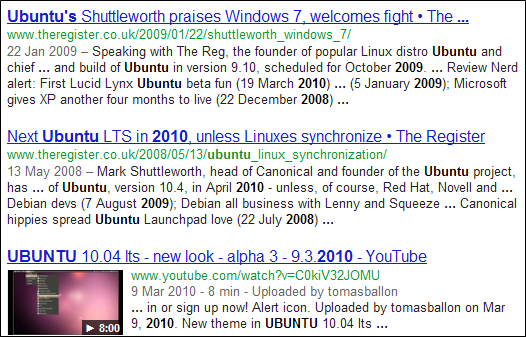 PHOTO: Time Ranges operator for specifying a specific time range - example, ubuntu 2008..2010
https://blogger.googleusercontent.com/img/b/R29vZ2xl/AVvXsEirRZ4eyLKfh8JtCW-RntX1XLQoFq5-G3UsPKfZniYaEij54nvR_r-bNl6sMoqwy5HBLsyuNymde_QbqG6MuWO76t2Pa8HQXX_QynAKknzUkjAaozSCLlI66qs8_xFibos6e-diVEsBXeaS/s1600/screenshot_0611.png
http://cdn.howtogeek.com/wp-content/uploads/2012/02/screenshot_0611.png
http://www.howtogeek.com/106718/how-to-search-google-like-a-pro-11-tricks-you-have-to-know/
File Type
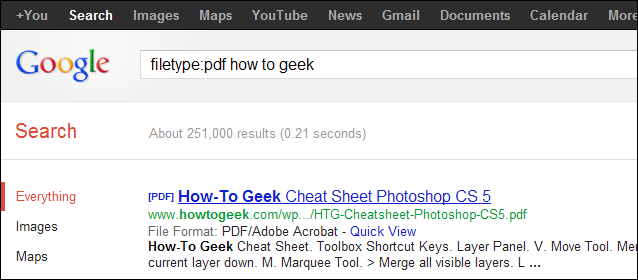
The filetype: operator lets you search for files of a specific file type. For example, you could search for only PDF files.
filetype:pdf how to geek
https://blogger.googleusercontent.com/img/b/R29vZ2xl/AVvXsEhujVphfihTItN5Hun9tq0SxXCv_4bwqKNoinRxdOt3EVIzs9o5pQ-eN9hWE0YTM8Q-H__oMEhhUB7DjGflMjGWI-m8gYjoq76femKy1rHBu9TkbTXAwvStTQu5W-icmP-QNGGFLZ2EbHG1/s1600/screenshot_0412.png
http://cdn.howtogeek.com/wp-content/uploads/2012/02/screenshot_0412.png
http://www.howtogeek.com/106718/how-to-search-google-like-a-pro-11-tricks-you-have-to-know/
Apparently, “Linux” is the most similar word to geek, followed by “Greek.” “Nerd” comes in third. (Hey, no one ever said Google was perfect.)
The Wildcard
The asterisk (*) is a wildcard that can match any word. For example, if you wanted to see what companies Google has purchased and how much they paid, you could use this search:
“google purchased * for * dollars”
PHOTO: The asterisk (*) wildcard that can match any word - example, “google purchased * for * dollars”https://blogger.googleusercontent.com/img/b/R29vZ2xl/AVvXsEitH8FmjD3iWBjfpbw-U5tQCkvJrhiwAN9cVaJYmZFcUBMRFRbc0cemeHznQcYrBzFGQwRC5HPSAiT3DpKVxhc00LZnnzjxkYnBoKj2KmUsFabjhhk1dcXaw7KGdsVARQC75uzCFZNvzdUm/s1600/screenshot_0512.png
http://cdn.howtogeek.com/wp-content/uploads/2012/02/screenshot_0512.png
http://www.howtogeek.com/106718/how-to-search-google-like-a-pro-11-tricks-you-have-to-know/
Time Ranges
A little-known search operator allows you to specify a specific time range. For example, use the following search to find results about Ubuntu from between 2008 and 2010:
ubuntu 2008..2010
PHOTO: Time Ranges operator for specifying a specific time range - example, ubuntu 2008..2010https://blogger.googleusercontent.com/img/b/R29vZ2xl/AVvXsEirRZ4eyLKfh8JtCW-RntX1XLQoFq5-G3UsPKfZniYaEij54nvR_r-bNl6sMoqwy5HBLsyuNymde_QbqG6MuWO76t2Pa8HQXX_QynAKknzUkjAaozSCLlI66qs8_xFibos6e-diVEsBXeaS/s1600/screenshot_0611.png
http://cdn.howtogeek.com/wp-content/uploads/2012/02/screenshot_0611.png
http://www.howtogeek.com/106718/how-to-search-google-like-a-pro-11-tricks-you-have-to-know/
File Type
The filetype: operator lets you search for files of a specific file type. For example, you could search for only PDF files.
filetype:pdf how to geek
PHOTO: The filetype: operator searches for files of a specific file type - example, filetype:pdf how to geek
https://blogger.googleusercontent.com/img/b/R29vZ2xl/AVvXsEiHGYh_GwFpfFvZ_3KCtdALhMa7kfwgsvIbbRlhLO2xcjk0eadIk6qhkPtoLAvFFQ1CO3-y8UICA4pRfZLQql2Bk44yem38lr4QMsVYI7uAKj79JItu2lXZS72qIyZgvOGQdxCmTHtRwXHK/s1600/screenshot_079.png
http://cdn.howtogeek.com/wp-content/uploads/2012/02/screenshot_079.png
http://www.howtogeek.com/106718/how-to-search-google-like-a-pro-11-tricks-you-have-to-know/
One Word or the Other
The “OR” operator lets you find words that contain one term or another. For example, using the following search will pull up results that contain either the word “Ubuntu” or the word “Linux.” The word “OR” must be in uppercase.
ubuntu OR linux

https://blogger.googleusercontent.com/img/b/R29vZ2xl/AVvXsEiHGYh_GwFpfFvZ_3KCtdALhMa7kfwgsvIbbRlhLO2xcjk0eadIk6qhkPtoLAvFFQ1CO3-y8UICA4pRfZLQql2Bk44yem38lr4QMsVYI7uAKj79JItu2lXZS72qIyZgvOGQdxCmTHtRwXHK/s1600/screenshot_079.png
http://cdn.howtogeek.com/wp-content/uploads/2012/02/screenshot_079.png
http://www.howtogeek.com/106718/how-to-search-google-like-a-pro-11-tricks-you-have-to-know/
One Word or the Other
The “OR” operator lets you find words that contain one term or another. For example, using the following search will pull up results that contain either the word “Ubuntu” or the word “Linux.” The word “OR” must be in uppercase.
ubuntu OR linux
PHOTO: The “OR” operator to find words that contain one term or another - example, ubuntu OR linux
https://blogger.googleusercontent.com/img/b/R29vZ2xl/AVvXsEhoEjqEA8Rbb4OIVrTpi3gk-nBj9cVgr6P9yB7OENTq4xtdxvit0oSIvCXBOJQDnhMWrByddkIEe0nbgdLWxWRvbXU6FVPqiAzZgM8530fhWGTnUwlY_8Qa6Ce8dByTDVjUalTbRvA4Y4o4/s1600/screenshot_0811.png
http://cdn.howtogeek.com/wp-content/uploads/2012/02/screenshot_0811.png
http://www.howtogeek.com/106718/how-to-search-google-like-a-pro-11-tricks-you-have-to-know/
Word Definitions
You don’t have to Google a word and look for a dictionary link if you want to see its definition. Use the following search trick and you’ll see an inline definition:
define:word

https://blogger.googleusercontent.com/img/b/R29vZ2xl/AVvXsEhoEjqEA8Rbb4OIVrTpi3gk-nBj9cVgr6P9yB7OENTq4xtdxvit0oSIvCXBOJQDnhMWrByddkIEe0nbgdLWxWRvbXU6FVPqiAzZgM8530fhWGTnUwlY_8Qa6Ce8dByTDVjUalTbRvA4Y4o4/s1600/screenshot_0811.png
http://cdn.howtogeek.com/wp-content/uploads/2012/02/screenshot_0811.png
http://www.howtogeek.com/106718/how-to-search-google-like-a-pro-11-tricks-you-have-to-know/
Word Definitions
You don’t have to Google a word and look for a dictionary link if you want to see its definition. Use the following search trick and you’ll see an inline definition:
define:word
PHOTO: The define: operator to see the word's definition - example, define:word
https://blogger.googleusercontent.com/img/b/R29vZ2xl/AVvXsEjvVb0c8G6MCDNQ7HMNTa0T5cW_8yJdWQ8Y2pdyXZojqzI4AdeF_G1sPiEMbIJpXdoKLG-eK4VkSfxrge5vb_JA7lZyuuUHFcai6aE8Dfsw_tSmPsEwMbEZD-HygJ5mCQdLJXv8l0d_roPn/s1600/screenshot_098.png
http://cdn.howtogeek.com/wp-content/uploads/2012/02/screenshot_098.png
http://www.howtogeek.com/106718/how-to-search-google-like-a-pro-11-tricks-you-have-to-know/
Calculator
Use Google instead of pulling one out or launching a calculator app. Use the +, -, * and / symbols to specify arithmetic operations. You can also use brackets for more complicated expressions. Here’s an example:
(4 + 2) * (6 / 3)

https://blogger.googleusercontent.com/img/b/R29vZ2xl/AVvXsEjvVb0c8G6MCDNQ7HMNTa0T5cW_8yJdWQ8Y2pdyXZojqzI4AdeF_G1sPiEMbIJpXdoKLG-eK4VkSfxrge5vb_JA7lZyuuUHFcai6aE8Dfsw_tSmPsEwMbEZD-HygJ5mCQdLJXv8l0d_roPn/s1600/screenshot_098.png
http://cdn.howtogeek.com/wp-content/uploads/2012/02/screenshot_098.png
http://www.howtogeek.com/106718/how-to-search-google-like-a-pro-11-tricks-you-have-to-know/
Calculator
Use Google instead of pulling one out or launching a calculator app. Use the +, -, * and / symbols to specify arithmetic operations. You can also use brackets for more complicated expressions. Here’s an example:
(4 + 2) * (6 / 3)
PHOTO: The +, -, * and / symbols (arithmetic operator) to specify arithmetic operations - example: (4 + 2) * (6 / 3)
https://blogger.googleusercontent.com/img/b/R29vZ2xl/AVvXsEjL2VZ3AuV_-hJxT_Y4bLcQJZRIRvjBes-ke6QPiAGofZYPLwzdPzsBi9oc_d0_6W_kQa5X644aE5ULLWv_e3a-m7PzHVtZNG0XKAt7GtZ0KrxnwSd-W49Wt1LvKhjctm4hH315f-sY37KS/s1600/screenshot_109.png
http://cdn.howtogeek.com/wp-content/uploads/2012/02/screenshot_109.png
http://www.howtogeek.com/106718/how-to-search-google-like-a-pro-11-tricks-you-have-to-know/
Unit Conversions
The calculator can also convert between units. Just type “X [units] in [units]”. Here’s an example:
5 nautical miles in kilometers
![Unit Conversions 'X [units] in [units]' - example, 5 nautical miles in kilometers](https://blogger.googleusercontent.com/img/b/R29vZ2xl/AVvXsEhQKLCLcGL36wFLcbYtcI5Bkv9PxrCI9GqAnn_BJ5XA5rSZ7PXLOMN9GgQq6M7lkQCmTAilGdtp4sU6CowkqujRKa5q_VBavRCJolld-Ab5Wwqp0wfIari8HUU60GCez7w8IrbiS5sr-JTb/s1600/screenshot_1110.png)
https://blogger.googleusercontent.com/img/b/R29vZ2xl/AVvXsEjL2VZ3AuV_-hJxT_Y4bLcQJZRIRvjBes-ke6QPiAGofZYPLwzdPzsBi9oc_d0_6W_kQa5X644aE5ULLWv_e3a-m7PzHVtZNG0XKAt7GtZ0KrxnwSd-W49Wt1LvKhjctm4hH315f-sY37KS/s1600/screenshot_109.png
http://cdn.howtogeek.com/wp-content/uploads/2012/02/screenshot_109.png
http://www.howtogeek.com/106718/how-to-search-google-like-a-pro-11-tricks-you-have-to-know/
Unit Conversions
The calculator can also convert between units. Just type “X [units] in [units]”. Here’s an example:
5 nautical miles in kilometers
PHOTO: Unit Conversions “X [units] in [units]” - example, 5 nautical miles in kilometers
https://blogger.googleusercontent.com/img/b/R29vZ2xl/AVvXsEhQKLCLcGL36wFLcbYtcI5Bkv9PxrCI9GqAnn_BJ5XA5rSZ7PXLOMN9GgQq6M7lkQCmTAilGdtp4sU6CowkqujRKa5q_VBavRCJolld-Ab5Wwqp0wfIari8HUU60GCez7w8IrbiS5sr-JTb/s1600/screenshot_1110.png
http://cdn.howtogeek.com/wp-content/uploads/2012/02/screenshot_1110.png
http://www.howtogeek.com/106718/how-to-search-google-like-a-pro-11-tricks-you-have-to-know/
Exercise:
Combine these search operators to create more complex queries. Want to search a specific website for a PDF file, created between 2001 and 2003, that contains a specific phrase but not another phrase? Go ahead.
filetype:pdf 2001..2003 "Google" -ubuntu
https://blogger.googleusercontent.com/img/b/R29vZ2xl/AVvXsEhQKLCLcGL36wFLcbYtcI5Bkv9PxrCI9GqAnn_BJ5XA5rSZ7PXLOMN9GgQq6M7lkQCmTAilGdtp4sU6CowkqujRKa5q_VBavRCJolld-Ab5Wwqp0wfIari8HUU60GCez7w8IrbiS5sr-JTb/s1600/screenshot_1110.png
http://cdn.howtogeek.com/wp-content/uploads/2012/02/screenshot_1110.png
http://www.howtogeek.com/106718/how-to-search-google-like-a-pro-11-tricks-you-have-to-know/
Exercise:
Combine these search operators to create more complex queries. Want to search a specific website for a PDF file, created between 2001 and 2003, that contains a specific phrase but not another phrase? Go ahead.
filetype:pdf 2001..2003 "Google" -ubuntu

PHOTO: Exercise - filetype:pdf 2001..2003 "Google" -ubuntu
https://blogger.googleusercontent.com/img/b/R29vZ2xl/AVvXsEjtLlXazinXeYpI2v_y4ilibpggoSQoeLPd2wPNJCJnwQNMF5K7pgYvQwohjVsGxpwMTv44a_hvArV6y1bSjRYDpBLdpaYvz-7J6rTLLzD3EPpHiDeqC4ih0vFDltLeOPil2VF255sXree3/s1600/filetype+pdf+2001..2003+%27Google%27+-ubuntu.jpg
By Chris Hoffman, Published 27 Feb 2012
Chris Hoffman is a technology writer and all-around computer geek. He's as at home using the Linux terminal as he is digging into the Windows registry. Connect with him on Google+.
Reference
By Chris Hoffman, Published 27 Feb 2012
Chris Hoffman is a technology writer and all-around computer geek. He's as at home using the Linux terminal as he is digging into the Windows registry. Connect with him on Google+.
Reference
- https://blogger.googleusercontent.com/img/b/R29vZ2xl/AVvXsEiONCc80jlsBlwrvDliAgQ-UY5ejxxnrP4d2EUPNyeRnJRW95tn2fM7sFAYu6jQHjGtBog-iRPlzS75Oxowf95fonNzLYQ2kFJPvqia1ltjYrhMHJqntL41mNUl0WbTRCBKkKpMLUtMmAYr/s1600/google-header.png
- http://cdn.howtogeek.com/wp-content/uploads/2012/02/google-header.png
- http://www.howtogeek.com/106718/how-to-search-google-like-a-pro-11-tricks-you-have-to-know/
- https://blogger.googleusercontent.com/img/b/R29vZ2xl/AVvXsEiweF0N7WxJzetk3hM7z8iaRwuGBkPzMg_eppHQS5EN1cDIm7Cxq-C22ApUjQff-uLhHYS7l3fcnd4L875nMD193mO40MtwqYpvtZ_Nh3Ek1JLOSg4oOTKMVBAGC4CDCvi-y3AY2uXNyz1O/s1600/screenshot_0114.png
- http://cdn.howtogeek.com/wp-content/uploads/2012/02/screenshot_0114.png
- http://www.howtogeek.com/106718/how-to-search-google-like-a-pro-11-tricks-you-have-to-know/
- https://blogger.googleusercontent.com/img/b/R29vZ2xl/AVvXsEhtAgUNFOUtIE5bInW-Svzg786EvM63bl3gFhEs6Cf-BcwcgR7OOHtckjc3v1mFGDZn1hxtGpFQmOzXGt24NI8VPVTBwfKnVHw3vvxYTKNBsemBXw0H9zT-liDznjlPRLG00GAonfuQ6Ngp/s1600/screenshot_0213.png
- http://cdn.howtogeek.com/wp-content/uploads/2012/02/screenshot_0213.png
- http://www.howtogeek.com/106718/how-to-search-google-like-a-pro-11-tricks-you-have-to-know/
- https://blogger.googleusercontent.com/img/b/R29vZ2xl/AVvXsEh01ZJ536VyEB7lvxxOQTlJuP1R-ygRpi1zthDsVV2mIWg_8Ap9QmtisrafLnGojCFRsc8qv04p_Q72w7pdxH-H1uQQoVpmAeZiLxUNlb3wkTZToKVONqtHXmKuFAfcMVntq7NDt2TP4n9t/s1600/screenshot_0313.png
- http://cdn.howtogeek.com/wp-content/uploads/2012/02/screenshot_0313.png
- http://www.howtogeek.com/106718/how-to-search-google-like-a-pro-11-tricks-you-have-to-know/
- https://blogger.googleusercontent.com/img/b/R29vZ2xl/AVvXsEhujVphfihTItN5Hun9tq0SxXCv_4bwqKNoinRxdOt3EVIzs9o5pQ-eN9hWE0YTM8Q-H__oMEhhUB7DjGflMjGWI-m8gYjoq76femKy1rHBu9TkbTXAwvStTQu5W-icmP-QNGGFLZ2EbHG1/s1600/screenshot_0412.png
- http://cdn.howtogeek.com/wp-content/uploads/2012/02/screenshot_0412.png
- http://www.howtogeek.com/106718/how-to-search-google-like-a-pro-11-tricks-you-have-to-know/
- https://blogger.googleusercontent.com/img/b/R29vZ2xl/AVvXsEitH8FmjD3iWBjfpbw-U5tQCkvJrhiwAN9cVaJYmZFcUBMRFRbc0cemeHznQcYrBzFGQwRC5HPSAiT3DpKVxhc00LZnnzjxkYnBoKj2KmUsFabjhhk1dcXaw7KGdsVARQC75uzCFZNvzdUm/s1600/screenshot_0512.png
- http://cdn.howtogeek.com/wp-content/uploads/2012/02/screenshot_0512.png
- http://www.howtogeek.com/106718/how-to-search-google-like-a-pro-11-tricks-you-have-to-know/
- https://blogger.googleusercontent.com/img/b/R29vZ2xl/AVvXsEirRZ4eyLKfh8JtCW-RntX1XLQoFq5-G3UsPKfZniYaEij54nvR_r-bNl6sMoqwy5HBLsyuNymde_QbqG6MuWO76t2Pa8HQXX_QynAKknzUkjAaozSCLlI66qs8_xFibos6e-diVEsBXeaS/s1600/screenshot_0611.png
- http://cdn.howtogeek.com/wp-content/uploads/2012/02/screenshot_0611.png
- http://www.howtogeek.com/106718/how-to-search-google-like-a-pro-11-tricks-you-have-to-know/
- https://blogger.googleusercontent.com/img/b/R29vZ2xl/AVvXsEiHGYh_GwFpfFvZ_3KCtdALhMa7kfwgsvIbbRlhLO2xcjk0eadIk6qhkPtoLAvFFQ1CO3-y8UICA4pRfZLQql2Bk44yem38lr4QMsVYI7uAKj79JItu2lXZS72qIyZgvOGQdxCmTHtRwXHK/s1600/screenshot_079.png
- http://cdn.howtogeek.com/wp-content/uploads/2012/02/screenshot_079.png
- http://www.howtogeek.com/106718/how-to-search-google-like-a-pro-11-tricks-you-have-to-know/
- https://blogger.googleusercontent.com/img/b/R29vZ2xl/AVvXsEhoEjqEA8Rbb4OIVrTpi3gk-nBj9cVgr6P9yB7OENTq4xtdxvit0oSIvCXBOJQDnhMWrByddkIEe0nbgdLWxWRvbXU6FVPqiAzZgM8530fhWGTnUwlY_8Qa6Ce8dByTDVjUalTbRvA4Y4o4/s1600/screenshot_0811.png
- http://cdn.howtogeek.com/wp-content/uploads/2012/02/screenshot_0811.png
- http://www.howtogeek.com/106718/how-to-search-google-like-a-pro-11-tricks-you-have-to-know/
- https://blogger.googleusercontent.com/img/b/R29vZ2xl/AVvXsEjvVb0c8G6MCDNQ7HMNTa0T5cW_8yJdWQ8Y2pdyXZojqzI4AdeF_G1sPiEMbIJpXdoKLG-eK4VkSfxrge5vb_JA7lZyuuUHFcai6aE8Dfsw_tSmPsEwMbEZD-HygJ5mCQdLJXv8l0d_roPn/s1600/screenshot_098.png
- http://cdn.howtogeek.com/wp-content/uploads/2012/02/screenshot_098.png
- http://www.howtogeek.com/106718/how-to-search-google-like-a-pro-11-tricks-you-have-to-know/
- https://blogger.googleusercontent.com/img/b/R29vZ2xl/AVvXsEjL2VZ3AuV_-hJxT_Y4bLcQJZRIRvjBes-ke6QPiAGofZYPLwzdPzsBi9oc_d0_6W_kQa5X644aE5ULLWv_e3a-m7PzHVtZNG0XKAt7GtZ0KrxnwSd-W49Wt1LvKhjctm4hH315f-sY37KS/s1600/screenshot_109.png
- http://cdn.howtogeek.com/wp-content/uploads/2012/02/screenshot_109.png
- http://www.howtogeek.com/106718/how-to-search-google-like-a-pro-11-tricks-you-have-to-know/
- https://blogger.googleusercontent.com/img/b/R29vZ2xl/AVvXsEhQKLCLcGL36wFLcbYtcI5Bkv9PxrCI9GqAnn_BJ5XA5rSZ7PXLOMN9GgQq6M7lkQCmTAilGdtp4sU6CowkqujRKa5q_VBavRCJolld-Ab5Wwqp0wfIari8HUU60GCez7w8IrbiS5sr-JTb/s1600/screenshot_1110.png
- http://cdn.howtogeek.com/wp-content/uploads/2012/02/screenshot_1110.png
- http://www.howtogeek.com/106718/how-to-search-google-like-a-pro-11-tricks-you-have-to-know/







 Posts
Posts

















.jpg)
.gif)






%E5%BA%84%E5%B0%8F%E5%A9%B7+%28zhu%C4%81ng+xi%C7%8Eo+t%C3%ADng%29+-+%E5%A4%A9%E4%B8%8B%E6%88%91%E7%8B%AC%E9%86%89+%28ti%C4%81n+xi%C3%A0+w%C7%92+d%C3%BA+zu%C3%AC%29.jpg)


