Source Website:
http://mobileoffice.about.com/od/wifimobileconnectivity/ss/how-to-tether-android-phones-with-pdanet-instructions.htm
http://pdanet.co/a/
http://www.wikihow.com/Find-the-MAC-Address-of-Your-Computer
By Melanie Pinola, About.com Guide
 PHOTO: Melanie Pinola
Mobile Office Technology Guide
https://blogger.googleusercontent.com/img/b/R29vZ2xl/AVvXsEgOhF2tPxZ-C3qEZFb-5OSNiCC3-aN3T46sOkcAIvxOw1SZbDdw2gGg8f6rEVq7YRIbJNvh6SCwLZ-TeYgqKvTM2FUXegyZY_slzb_gt7TiAzg4DTanugds_34x7_4FgMoPFbhhAci_r_T5/s1600/74202.jpg
http://0.tqn.com/d/g/74202.jpg
http://mobileoffice.about.com/od/wifimobileconnectivity/ss/how-to-tether-android-phones-with-pdanet-instructions.htm

http://mobileoffice.about.com/od/wifimobileconnectivity/ss/how-to-tether-android-phones-with-pdanet-instructions.htm
http://pdanet.co/a/
http://www.wikihow.com/Find-the-MAC-Address-of-Your-Computer
By Melanie Pinola, About.com Guide
Mobile Office Technology Guide
https://blogger.googleusercontent.com/img/b/R29vZ2xl/AVvXsEgOhF2tPxZ-C3qEZFb-5OSNiCC3-aN3T46sOkcAIvxOw1SZbDdw2gGg8f6rEVq7YRIbJNvh6SCwLZ-TeYgqKvTM2FUXegyZY_slzb_gt7TiAzg4DTanugds_34x7_4FgMoPFbhhAci_r_T5/s1600/74202.jpg
http://0.tqn.com/d/g/74202.jpg
http://mobileoffice.about.com/od/wifimobileconnectivity/ss/how-to-tether-android-phones-with-pdanet-instructions.htm
PHOTO: PdaNet Tethering App
PdaNet Android app for tethering, Logo PdaNet / Screengrab Melanie Pinola
PdaNet Android app for tethering, Logo PdaNet / Screengrab Melanie Pinola
https://blogger.googleusercontent.com/img/b/R29vZ2xl/AVvXsEjCyFzTiUvhvYGQP-9d489nPjE-FsPTHvFdW0TWHtQCdsaYw4QHNSf35oisqY8VYE7DCbqiUwH7ibQBfdynXHGFO0W2AJp6Zhi7ISGYphSUZZQFov-qGfoI1CdXQEY0fu70RuD5GnfMz2QX/s1600/android-pdanet.png
http://0.tqn.com/d/mobileoffice/1/0/G/E/android-pdanet.png
http://mobileoffice.about.com/od/wifimobileconnectivity/ss/how-to-tether-android-phones-with-pdanet-instructions.htm
Tethering with PdaNet: An Overview
PdaNet is a free app (available for iPhone, Android, BlackBerry, and other mobile platforms) that you can use to turn your smartphone into a modem for your laptop. Tethering capabilities mean you'll never have to worry about finding a wi-fi hotspot or be in range of a wireless access point -- as long as you have cellular data coverage (3G/4G), you'll be able to work online on your laptop wherever you are.
The screenshots here use the Android version as an example (Android 2.1 and Windows 7). PdaNet's Android version enables tethering via USB cable as well as over Bluetooth DUN (Dial-Up Networking). Although you can use PdaNet for free, the full version ($23.95) allows you to access secure web sites after the trial period ends.
Next: Download and install PdaNet to your computer

http://0.tqn.com/d/mobileoffice/1/0/G/E/android-pdanet.png
http://mobileoffice.about.com/od/wifimobileconnectivity/ss/how-to-tether-android-phones-with-pdanet-instructions.htm
Tethering with PdaNet: An Overview
PdaNet is a free app (available for iPhone, Android, BlackBerry, and other mobile platforms) that you can use to turn your smartphone into a modem for your laptop. Tethering capabilities mean you'll never have to worry about finding a wi-fi hotspot or be in range of a wireless access point -- as long as you have cellular data coverage (3G/4G), you'll be able to work online on your laptop wherever you are.
The screenshots here use the Android version as an example (Android 2.1 and Windows 7). PdaNet's Android version enables tethering via USB cable as well as over Bluetooth DUN (Dial-Up Networking). Although you can use PdaNet for free, the full version ($23.95) allows you to access secure web sites after the trial period ends.
Next: Download and install PdaNet to your computer
PHOTO: Download and Install PdaNet on Your Mac or PC
Install PdaNet on Your Computer, by Melanie Pinola
Install PdaNet on Your Computer, by Melanie Pinola
https://blogger.googleusercontent.com/img/b/R29vZ2xl/AVvXsEjAv2-cZ5gWIFFHMF7peKFQ3kjUWgLJOlJ8oUhJMxMiC2eZRfHQbFBansYzRXYL4nkmxs_4seNLLr9XM4EYmy8MTih9NoNB4zY-UP9iViwZzhzSNBFRdHCExcFUGv210PDbp2hZUAWwVf7A/s1600/pdanet-install-usb-driver.gif
http://0.tqn.com/d/mobileoffice/1/0/E/E/pdanet-install-usb-driver.GIF
http://mobileoffice.about.com/od/wifimobileconnectivity/ss/how-to-tether-android-phones-with-pdanet-instructions_2.htm
Tether Your Android Phone to a Windows or Mac Computer
To use the PdaNet app for tethering your Android phone, you need to install the app on both your Android phone (download it from Android Market) and also install the software on the Windows computer (Windows XP, Vista, Windows 7 -- 32-bit and 64-bit versions available) or Mac OS X (10.5+) computer you want to go online from using your cell phone as the modem.
http://0.tqn.com/d/mobileoffice/1/0/E/E/pdanet-install-usb-driver.GIF
http://mobileoffice.about.com/od/wifimobileconnectivity/ss/how-to-tether-android-phones-with-pdanet-instructions_2.htm
Tether Your Android Phone to a Windows or Mac Computer
To use the PdaNet app for tethering your Android phone, you need to install the app on both your Android phone (download it from Android Market) and also install the software on the Windows computer (Windows XP, Vista, Windows 7 -- 32-bit and 64-bit versions available) or Mac OS X (10.5+) computer you want to go online from using your cell phone as the modem.
Step 1: Download the PdaNet Android Windows or Mac installers from makers June Fabrics.
(Alternately, you can download the installation file to your Android phone's SD card, connect your phone via USB and mount the SD card, and run the installation package from there.)
Step 2: Install PdaNet on Your Computer:
(Alternately, you can download the installation file to your Android phone's SD card, connect your phone via USB and mount the SD card, and run the installation package from there.)
Step 2: Install PdaNet on Your Computer:
Set up on the computer side is pretty straightforward though there are several steps involved. During the installation you'll be prompted to select your cell phone manufacturer and also connect your device via USB (enable USB debugging on your Android phone in Settings > Applications > Development).
You may be warned by Windows Security that the publisher of the driver software can't be verified, but just ignore that prompt and choose to "Install this driver software anyway."
Next: Install the PdaNet app on your Android device

PHOTO: Download and Install PdaNet on Your Cell Phone
Download PdaNet from the Android Market, Screengrab by Melanie Pinola
Next: Install the PdaNet app on your Android device
PHOTO: Download and Install PdaNet on Your Cell Phone
Download PdaNet from the Android Market, Screengrab by Melanie Pinola
https://blogger.googleusercontent.com/img/b/R29vZ2xl/AVvXsEgZ6d0tPsi9gCHjY9FveNZ7kUgTtzjbhLBmrg0IcHc0divRWT-_T4x6zIokQDxPijr9QnEgebloDFIgzTa48gfbY9XpGKg9g6mJVe-YBGEvoGX2T0eB-IyPzEhdQFewmjtpU2uJnGRRFwTL/s1600/android-pdanet-market.png
http://0.tqn.com/d/mobileoffice/1/0/H/E/android-pdanet-market.png
http://mobileoffice.about.com/od/wifimobileconnectivity/ss/how-to-tether-android-phones-with-pdanet-instructions_3.htm
Step 3: Download PdaNet to Your Android Smartphone
After installing the PdaNet software for your Windows or Mac laptop/computer, you'll need the app on your Android smartphone. Search for "PdaNet" (not case-sensitive, actually) in the Android Market, and install the app (made by June Fabrics Technology Inc.).
Next: Connect Your Android phone via USB or Bluetooth

http://0.tqn.com/d/mobileoffice/1/0/H/E/android-pdanet-market.png
http://mobileoffice.about.com/od/wifimobileconnectivity/ss/how-to-tether-android-phones-with-pdanet-instructions_3.htm
Step 3: Download PdaNet to Your Android Smartphone
After installing the PdaNet software for your Windows or Mac laptop/computer, you'll need the app on your Android smartphone. Search for "PdaNet" (not case-sensitive, actually) in the Android Market, and install the app (made by June Fabrics Technology Inc.).
Next: Connect Your Android phone via USB or Bluetooth
PHOTO: Tether Your Android Phone to Your Computer
Connect your Android device to your computer to use PdaNet for tethering, by Melanie Pinola
https://blogger.googleusercontent.com/img/b/R29vZ2xl/AVvXsEhHlxmEoMLjkFcMzSWq6orbuUFwzxWruVHuG1tBJNOl6zJKBlnIbRVq6xuhu73-2dEB5-9-vsHfL_0eFejs2uhkpb5PHYyF6MloK6jSPfe1KoWEJUiYiJ__vwl-ypwVM2yQ1qftQk_dPUAP/s1600/tether-pdanet-pop-up.jpg
http://0.tqn.com/d/mobileoffice/1/0/F/E/tether-pdanet-pop-up.jpg
http://mobileoffice.about.com/od/wifimobileconnectivity/ss/how-to-tether-android-phones-with-pdanet-instructions_4.htm
Step 4: Connect Your Android Phone to Your Computer to Share the Internet Connection
Once the software has been installed on both your Android phone and your laptop, you can share your phone's Internet connection with your computer.
Connect your Android device to your computer to use PdaNet for tethering, by Melanie Pinola
https://blogger.googleusercontent.com/img/b/R29vZ2xl/AVvXsEhHlxmEoMLjkFcMzSWq6orbuUFwzxWruVHuG1tBJNOl6zJKBlnIbRVq6xuhu73-2dEB5-9-vsHfL_0eFejs2uhkpb5PHYyF6MloK6jSPfe1KoWEJUiYiJ__vwl-ypwVM2yQ1qftQk_dPUAP/s1600/tether-pdanet-pop-up.jpg
http://0.tqn.com/d/mobileoffice/1/0/F/E/tether-pdanet-pop-up.jpg
http://mobileoffice.about.com/od/wifimobileconnectivity/ss/how-to-tether-android-phones-with-pdanet-instructions_4.htm
Step 4: Connect Your Android Phone to Your Computer to Share the Internet Connection
Once the software has been installed on both your Android phone and your laptop, you can share your phone's Internet connection with your computer.
To connect over USB:
- Go to the PdaNet app on your smartphone and select "Enable USB Tether," then use the USB cable to connect the device to your laptop.
- You'll get a pop-up window on the laptop that you can click to connect the phone to PdaNet.
- You may also or alternately have to click on the PdaNet icon in your taskbar, and select "Connect Internet."
To connect via Bluetooth, the steps are pretty much the same, except you will select "Enable Bluetooth DUN" in the Android app and pair your Android phone with your laptop via Bluetooth rather than via the USB cable.
You should then see the joyful "Connected!" notification on your laptop and be able to surf the Web (albeit [although] not that fast) using your Android's data connection.
By Melanie Pinola, About.com Guide
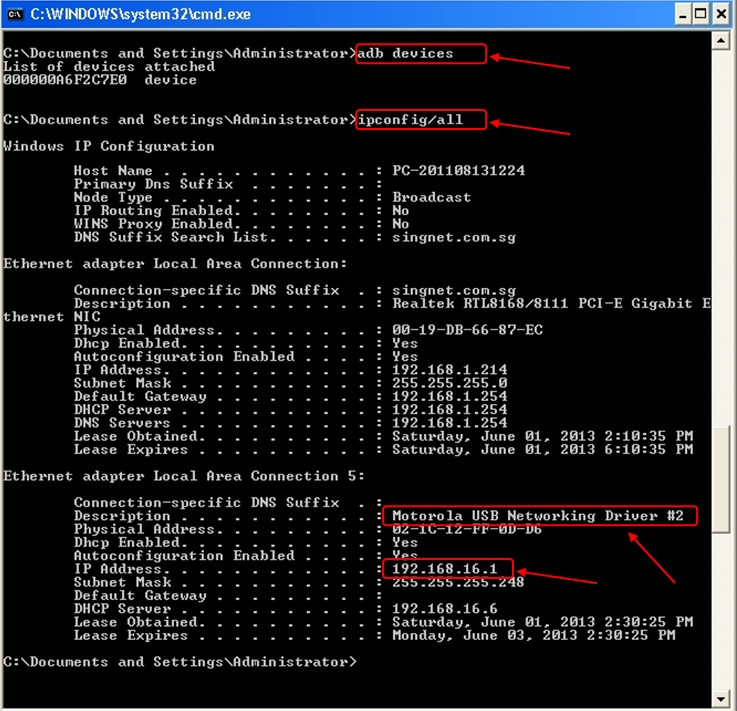
A MAC (Media Access Control) address is a number that identifies the network adaptor(s) installed on your computer. MAC Address is the Physical Address of network adaptor, eg. 00-13-72-A7-34-1F.
Source Website: http://www.wikihow.com/Find-the-MAC-Address-of-Your-Computer
Reference
You should then see the joyful "Connected!" notification on your laptop and be able to surf the Web (albeit [although] not that fast) using your Android's data connection.
By Melanie Pinola, About.com Guide
A MAC (Media Access Control) address is a number that identifies the network adaptor(s) installed on your computer. MAC Address is the Physical Address of network adaptor, eg. 00-13-72-A7-34-1F.
Source Website: http://www.wikihow.com/Find-the-MAC-Address-of-Your-Computer
Reference
- http://mobileoffice.about.com/od/wifimobileconnectivity/ss/how-to-tether-android-phones-with-pdanet-instructions.htm
- http://pdanet.co/a/
- http://www.wikihow.com/Find-the-MAC-Address-of-Your-Computer
- https://blogger.googleusercontent.com/img/b/R29vZ2xl/AVvXsEgOhF2tPxZ-C3qEZFb-5OSNiCC3-aN3T46sOkcAIvxOw1SZbDdw2gGg8f6rEVq7YRIbJNvh6SCwLZ-TeYgqKvTM2FUXegyZY_slzb_gt7TiAzg4DTanugds_34x7_4FgMoPFbhhAci_r_T5/s1600/74202.jpg
- http://0.tqn.com/d/g/74202.jpg
- http://mobileoffice.about.com/od/wifimobileconnectivity/ss/how-to-tether-android-phones-with-pdanet-instructions.htm
- https://blogger.googleusercontent.com/img/b/R29vZ2xl/AVvXsEjCyFzTiUvhvYGQP-9d489nPjE-FsPTHvFdW0TWHtQCdsaYw4QHNSf35oisqY8VYE7DCbqiUwH7ibQBfdynXHGFO0W2AJp6Zhi7ISGYphSUZZQFov-qGfoI1CdXQEY0fu70RuD5GnfMz2QX/s1600/android-pdanet.png
- http://0.tqn.com/d/mobileoffice/1/0/G/E/android-pdanet.png
- http://mobileoffice.about.com/od/wifimobileconnectivity/ss/how-to-tether-android-phones-with-pdanet-instructions.htm
- https://blogger.googleusercontent.com/img/b/R29vZ2xl/AVvXsEjAv2-cZ5gWIFFHMF7peKFQ3kjUWgLJOlJ8oUhJMxMiC2eZRfHQbFBansYzRXYL4nkmxs_4seNLLr9XM4EYmy8MTih9NoNB4zY-UP9iViwZzhzSNBFRdHCExcFUGv210PDbp2hZUAWwVf7A/s1600/pdanet-install-usb-driver.gif
- http://0.tqn.com/d/mobileoffice/1/0/E/E/pdanet-install-usb-driver.GIF
- http://mobileoffice.about.com/od/wifimobileconnectivity/ss/how-to-tether-android-phones-with-pdanet-instructions_2.htm
- https://blogger.googleusercontent.com/img/b/R29vZ2xl/AVvXsEgZ6d0tPsi9gCHjY9FveNZ7kUgTtzjbhLBmrg0IcHc0divRWT-_T4x6zIokQDxPijr9QnEgebloDFIgzTa48gfbY9XpGKg9g6mJVe-YBGEvoGX2T0eB-IyPzEhdQFewmjtpU2uJnGRRFwTL/s1600/android-pdanet-market.png
- http://0.tqn.com/d/mobileoffice/1/0/H/E/android-pdanet-market.png
- http://mobileoffice.about.com/od/wifimobileconnectivity/ss/how-to-tether-android-phones-with-pdanet-instructions_3.htm
- https://blogger.googleusercontent.com/img/b/R29vZ2xl/AVvXsEhHlxmEoMLjkFcMzSWq6orbuUFwzxWruVHuG1tBJNOl6zJKBlnIbRVq6xuhu73-2dEB5-9-vsHfL_0eFejs2uhkpb5PHYyF6MloK6jSPfe1KoWEJUiYiJ__vwl-ypwVM2yQ1qftQk_dPUAP/s1600/tether-pdanet-pop-up.jpg
- http://0.tqn.com/d/mobileoffice/1/0/F/E/tether-pdanet-pop-up.jpg
- http://mobileoffice.about.com/od/wifimobileconnectivity/ss/how-to-tether-android-phones-with-pdanet-instructions_4.htm







 Posts
Posts
















.jpg)
.gif)